Buy anything from 5,000+ international stores. One checkout price. No surprise fees. Join 2M+ shoppers on Desertcart.
Desertcart purchases this item on your behalf and handles shipping, customs, and support to South Korea.
🚀 Elevate your DIY projects with a pro-grade touchscreen that keeps you ahead of the curve!
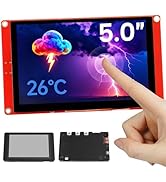
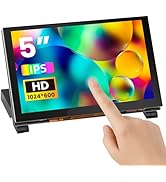
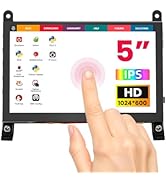
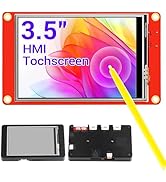
The ELECROW 5-Inch Resistive Touch Screen offers a sharp 800x480 HD display with industrial-grade touch sensitivity, compatible across multiple platforms including Raspberry Pi and Windows PCs. Designed for durability and portability, it features manual backlight control for energy efficiency and comes with a full accessory kit and expert support, making it the ultimate compact touchscreen solution for tech-savvy professionals.


| ASIN | B013JECYF2 |
| Additional Features | Lightweight, Portable, Touchscreen |
| Aspect Ratio | 16:9 |
| Best Sellers Rank | #34,707 in Electronics ( See Top 100 in Electronics ) #18 in LCD Touch Panels #851 in Computer Monitors |
| Brand | ELECROW |
| Built-In Media | 5 inch touchscreen x 1, CD x 1, touch pen x 1, HDadapterx 1, copper pillars (4PCS) x 1 |
| Cable Length | 5 Inches |
| Color | Black |
| Compatible Devices | Banana Pi, Desktop, Jetson Nano, Raspberry Pi |
| Connectivity Technology | USB |
| Contrast Ratio | Gut |
| Customer Reviews | 4.3 out of 5 stars 1,220 Reviews |
| Display Resolution Maximum | 800x480 Pixels |
| Display Technology | LCD |
| Display Type | LCD |
| Hardware Connectivity | HDMI |
| Has Color Screen | Yes |
| Image Contrast Ratio | Gut |
| Is Electric | Yes |
| Item Dimensions D x W x H | 1"D x 4.7"W x 3"H |
| Item Weight | 113 Grams |
| Manufacturer | ELECROW |
| Model Name | RR050 |
| Model Number | RPA05010R |
| Mounting Type | Panel Mount |
| Native Resolution | 800 x 480 |
| Number of Component Outputs | 1 |
| Picture Quality Enhancement Technology | IPS |
| Pixel Pitch | 0.25 |
| Refresh Rate | 60 Hz |
| Resolution | SVGA |
| Response Time | 6 Milliseconds |
| Screen Finish | Glossy |
| Screen Size | 5 Inches |
| Screen Surface Description | Glossy |
| Series Number | 5 |
| Shape | Rectangular |
| Specific Uses For Product | Business, Desktop, Entertainment |
| Total Number of HDMI Ports | 1 |
| Total USB 2.0 Ports | 1 |
| Total Usb Ports | 1 |
| UPC | 602731537505 673257102690 |
| Unit Count | 1.0 Count |
| Viewing Angle | 170 Degrees |
| Voltage | 5 Volts |
| Warranty Description | 1 Year Manufacturer |
| Warranty Type | 1 Year Manufacturer Warranty |
C**L
Love it
Works great with my cyber deck & was easy to set up
T**Y
Comprehensive Review of the Elecrow 5” Touchscreen: Highs and Lows
I recently purchased the Elecrow 5” touchscreen, intrigued by its compact size and compatibility promises with Raspberry Pi devices. Here’s my detailed experience with it: Performance & Usability: The touchscreen generally performs well, providing a crisp and bright display that enhances my projects' interactivity. The screen resolution is commendable, delivering clear and vibrant visuals, which is a plus for anyone looking to add a display to their Raspberry Pi. Power Requirements: However, it’s important to note that this screen requires additional power to function optimally. It isn’t a simple plug-and-play solution with the Raspberry Pi, as one might expect. This means you’ll need to plan for an additional power source or a more robust setup than initially anticipated, which could be a slight inconvenience for those expecting a straightforward setup. Connectivity & Integration: Setting up the screen wasn’t entirely seamless. While it’s marketed as compatible with Raspberry Pi, the lack of plug-and-play functionality means you'll spend extra time on installation and possibly troubleshooting. This aspect could be improved for a better user experience. Screen Performance: The screen's brightness is impressive, offering clear visibility in various lighting conditions. However, I’ve noticed intermittent lagging, which might not affect all users but is worth mentioning for those who require consistent, real-time responsiveness. Overall Experience: Despite these challenges, the Elecrow 5” touchscreen is a solid choice for hobbyists and developers looking to enhance their Raspberry Pi projects. The extra effort in setup and power arrangements is a small trade-off for the screen’s overall quality and performance. Recommendation: I recommend this product with the caveat of the mentioned issues. It’s suitable for users who are prepared to handle the extra steps for power and those who can tolerate occasional screen lags. If you’re looking for an affordable, bright, and generally reliable touchscreen for your Raspberry Pi, this is a worthy option, provided you’re ready to tackle its quirks.
I**T
Rasberry Pi 3 - Easy Install Instructions
This screen is a great little device. It is bright and crisp. The touchscreen works well. Installing it took me quite a few tries though, so I thought I would post my findings to help someone else. I have have only tested this on a Raspberry Pi 3 running Debian Jessie, but it may work on other versions and flavors. Strong recommendation: Do not bother downloading the so-called "driver" noted in various places. The version for Debian Jessie is really just a script that copies configuration files (that seem to have some errors) into your /etc/ directories that brick your device. Happily, there is no need to do this, you can easily modify the files yourself. Prior to connecting the new display, do the following: The only software you need is for the touchscreen. You can get this with "sudo apt-get install xinput-calibrator" Then edit /boot/config.txt to add the following lines: ---------------------------------------------------------------------------------- hdmi_group=2 hdmi_mode=1 hdmi_mode=87 hdmi_cvt 800 400 60 6 0 0 0 dtparam=spi=on dtparam=i2c_arm=on dtoverlay=ads7846,cs=1,penirq=25,penirq_pull=2,speed=50000,keep_vref_on=0,swapxy=0,pmax=255,xohms=150,xmin=200,xmax=3900,ymin=200,ymax=3900 <======Note this is all on 1 line! dtoverlay=w1-gpio-pullup,gpiopin=4,extpullup=1 ---------------------------------------------------------------------------------- Shutdown the pi, and connect the display. When you power it back up, you should have a perfect display. You can now calibrate the touchscreen by running Menu-->Preferences-->Calibrate Touchscreen. Click each of the four targets when requested and then you will get a text window which explains what you should put into a calibration file. For the Pi, the filename should be /usr/share/X11/xorg.conf.d/99-calibration.conf. And presto, you are done. I bricked my Pi 4 times getting this figured out...it is silly how easy it is once you know what needs to be done. Good luck!
F**X
Solid, bright, works great.
This little screen is fantastic, and a pretty dang good deal, to boot! I wanted to make myself a little portable Pi-based machine to take with me on the go, and a 5-inch screen seemed just about the right size. There are plenty of choices here on Amazon, but I decided to give this one a shot since it could also be used as a regular HDMI monitor. As the instructions note, this will not work with your Pi right out of the box; it needs some drivers and configuration settings tweaked first, or it'll light up and look like it's broken at first. A helpful note card included with the display lists a couple websites - one is the company's wiki that lists step-by-step instructions on setting things up, and the second is a helpful youtube video that gives a full run-down as well. Following the instructions on the wiki was a snap - Just install the latest Raspbian, copy/paste some configuration settings, clone Elecrow's git repository, run the binary, and reboot. Voila, a bright, sharp, vibrant display, ready to go. I'm currently attempting to find a nice case to put it all in for safer transport, but even without that, I'd say this is a great choice if you just want a small touchscreen display for your Raspberry Pi.
R**S
Hassle free configuration on Raspbian Jessie with PIXEL
After about 15 minutes had the screen and touch screen functionality working. Not a bad little display. Successfully configured with - Raspbian Jessie with PIXEL Image with PIXEL desktop based on Debian Jessie Version: September 2016 Release date: 2016-09-23 Kernel version: 4.4 My instructions: Open terminal and update the repositories: 1. sudo apt-get update An upgrade to the whole system isn't needed but it is recommended: 2. sudo apt-get upgrade Now for the configuration: 3. Open terminal and use the command: sudo nano /boot/config.txt 4. Copy and paste this into the /boot/config.txt ___________________________________________________ hdmi_group=2 hdmi_mode=1 hdmi_mode=87 hdmi_cvt 800 480 60 6 0 0 0 dtparam=spi=on dtparam=i2c_arm=on dtoverlay=ads7846,cs=1,penirq=25,penirq_pull=2,speed=50000,keep_vref_on=0,swapxy=0,pmax=255,xohms=150,xmin=200,xmax=3900,ymin=200,ymax=3900 dtoverlay=w1-gpio-pullup,gpiopin=4,extpullup=1 ___________________________________________________ 5. Ctrl + x and confirm file name(dont change name) press enter, type y and press enter to save changes. 6. Reboot 7. Install touchscreen software w/ command: sudo apt-get install xinput-calibrator 8. Calibrate the touchscreen by selecting Menu-->Preferences-->Calibrate Touchscreen (You will need to *use the stylus provided* with the screen and as accurately as you can select the circle inside of the X for the 4 X's that pop up during the calibration). After you do that for the 4 X's dont do anything else until it finishes loading 9. After calibration finishes loading an LXTerminal window pops up! Make sure to read that window it will tell you what to copy to your calibration file so that it saves! (Otherwise you will be resetting calibration on every reboot). However it does NOT say where to put the calibration changes for the distro i am running The location to save the output for your calibration is: /usr/share/X11/xorg.conf.d/10-evdev.conf 10. Type the command: sudo nano /usr/share/X11/xorg.conf.d/10-evdev.conf and paste the calibration output into this file. 11. Ctrl + x and confirm file name(dont change name)press enter, type y and press enter to save changes. Note: If you somehow mess up while calibrating the touchscreen just use the command Apt-get remove --purge xinput-calibrator, then reboot and reinstall it. (What I did anway) **Adding a virtual keyboard:** 12. sudo apt-get install matchbox-keyboard 13. sudo reboot 14. Open Menu>Accessories>Keyboard (Should now be listed) Also: OOB screen resolution is wrong, but this is not the screens fault. However it is a good thing it works OOB because if this was the only screen you had you could still get it working with this configuration process. *UPDATE* touchscreen functionality stopped working :( have tried re-calibrating and still doesn't work
H**1
Works on Pi 3 AND Pi Zero
Got it up and running easily thanks to the (corrected) info in IslePilot's review. (480 not 400.) Looks nice. Runs very well on my Pi 3 using just the 2.5A Canakit PS plugged into the Pi. After calibration, etc., I took out the SD card and put it into a Pi Zero and it worked. Some notes on using it on a Pi Zero: 1. Of course you have to solder in a header. I used one from the MakerSpot 8-in-1 Raspberry Pi Zero Mega Pack kit. (And the second header is on my other Zero). 2. Things don't line up the same. Forget the offset screws. For HDMI, I use a micro-to-standard HDMI adapter and a M-M HDMI cable. If you have a micro-to-standard HDMI M-M cable that should work. 3. Power: I use two 2.5 A PSes. One into the Zero and the other into the display. I doubt if it would work off of one like the Pi 3. Note with this setup the display doesn't power down when the screen goes to sleep.
E**.
Nice screen. Find the right instructions.
I followed the directions from this review for setting up my Raspberry Pi 3 with Raspian Jesse. I thought these were most helpful. (Don't forget so save your calibration settings. You have to do it by hand!): https://www.amazon.com/review/R3QVPHGJAQIYGW/ref=cm_cr_dp_title?ie=UTF8&ASIN=B013JECYF2&channel=detail-glance&nodeID=541966&store=pc A popular review has you use 800 400 in the CVT settings. That makes no sense. It should be 800 480. After following those instructions, the screen looks good and the touch works great. I will say that I made a backup of /boot/config.txt first: sudo cp /boot/config.txt /boot/config.txt.bak Some important points: it can get power from either the gpio pins if you slide those onto the Raspberry Pi OR from the USB OTG port. But you don't need to plug in the USB port if it's over the gpio pins. I'm using a 1500ma power supply and it powers the Pi, this screen, and my USB mouse and keyboard just fine. I can't do an accurate power measurement, though. If you use the GPIO pin header, not all of them are used but they will be difficult to access. That would be one case where the USB power and an HDMI cable would be useful. At least for me, if you boot without something connected to HDMI (either the screen or the TV) and then connect something to the HDMI (either the screen or a TV), nothing will show up. Rebooting will fix this. I can connect my Pi to a TV even after editing boot/config.txt for my Elecrow touchscreen. It doesn't look great on a TV but it works. This is good in case I need to edit /boot/config.txt again. The viewing angles are great left to right but very poor up and down. Just for kicks I tried plugging my Chromecast into it. Nothing appears. That's alright, though. Overall it's a pretty great little screen! I've ordered PCBs from Elecrow in the past and so I had no qualms or hesitations about ordering from them again, less so through Amazon. It's packed well and it shipped quickly. I wish there were a case or something for it. That would be cool! I received a discount on this product for giving this review. Edit: The viewing angles really are terrible. I've changed it from 5 to 4 stars.
J**H
Perfect Second Monitor for a PC
Hardest part was figuring out how to mount it. It is very plug and play for a second monitor inside your pc case. I had to mount mine portrait for time being. Its perfect though for my weyland yutani pc theme. Just be sure to have a micro usb cable to a molex usb mobo connector for it or at very least have a usb mobo adapter with a 9 pin male molex plug in. Then get a micro usb to 9 pin female molex cable. Theyre like 5-7.00 prime on here. Get a short hdmi cable as well to run to your gpu. That should be all you need. If you want to mount it you do need to get a backing of some sort to bolt flush to the case inside. Only snag I hit but besides that its perfect.
A**R
Very easy to set up and use
Arrvied VERY quickly, and easy to set up and get working. The box and packaging it came it is very neat and protected the screen well. Package includes the screen, HDMI adapter, mounting hardware, a touch stylus, and a DVD that is filled with pre-setup Raspberry Pi images! These images especially are really useful as I was up and running in minutes with no configuration needed and everything working. The touch screen was already calibrated and worked out of the box on the pre-made images. The DVD also contains the manual, and also the 'config.txt' file which means you can just drop it onto any other Pi distro and it just works. They have also included the touch driver and instructions too which makes it simple. The included DVD really helped out a bunch, no downloading of anything was required it even included the tools to load the .img onto the SD card :) The screen is great quality, and is bright and clear. The touchscreen adds protection to the actual LCD panel itself so the whole thing feels robust. It is also possible to use it as an external laptop screen (providing you can set 800x480 resolution in your control panel, I found the my nVidia control panel allowed me to set custom sizes and it worked). The screen is larger than the Pi3 itself, and if you were mounting it in an enclosure the extra mounting posts would make it easy to attach to a flat surface from behind. The USB and Ethernet ports are full available and don't protrude or stick out which is nice. There are solder pads with SPI and 5V + GND labelled that can be used for other IO (the SPI pads are used for the touch screen so don't re-use these unless you know what you are doing). Overall very happy, much neater than having a giant HDMI cable plugged into a monitor that needs a PSU etc.. now all I need is a single USB cable and I can mess around with my Pi easily :)
C**F
Good
Nice product, wish there is hdmi angled connector.
P**T
small & works great!
works great, I can’t wait to add it to my raspberry universe of options. i’m currently using it for my server to access the user interface instead of a massive screen.
D**A
Ein guter Bildschirm für den KlipperScreen
Ein sehr guter Bildschirm über den Preis läst sich streiten aber noch okay. Ich habe ihn für Klipper gebraucht da ich nicht immer den PC anschalten will um die Temperatur zu überwachen und sonst was ich steuern will. Die Installation ging sehr schnell und der KlipperScreen war auch schnell installiert. Das Touchscreen ist sehr gut auch ohne Stift, der mit beigelegt war. Das Display reagiert sehr gut und ohne Verzögerung, also ein gute Investition. Die Größe ist auch sehr gut, voll ausreichend. Ich kann das Display wärmstens empfehlen.
D**M
Écran 5pouce pour raspberry pi
Très content de recevoir le produit et m en servir au moment de L alume il me manque deux cm d écran et le tactile ne fonctionne pas je suis dégoûté.
Trustpilot
1 month ago
5 days ago