Buy anything from 5,000+ international stores. One checkout price. No surprise fees. Join 2M+ shoppers on Desertcart.
Desertcart purchases this item on your behalf and handles shipping, customs, and support to South Korea.
⚡ Print smarter, faster, and wirelessly—because your hustle deserves the best.
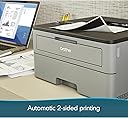
The Brother HL-L2350DW is a compact monochrome laser printer designed for busy professionals and small offices. It delivers rapid print speeds up to 32 pages per minute with sharp 2400 x 6000 dpi resolution, supports automatic duplex printing to save paper, and offers versatile wireless and USB connectivity. With a 250-sheet capacity and Amazon Dash Replenishment compatibility, it ensures efficient, cost-effective printing with minimal interruptions.


| ASIN | B0763WDSYZ |
| Additional Printer Functions | Print Only |
| B&W Pages per Minute | 32 ppm |
| Best Sellers Rank | #146,361 in Office Products ( See Top 100 in Office Products ) #192 in Laser Computer Printers |
| Brand | Brother |
| Built-In Media | Brother HLL2350DW, Starter Toner Cartridge (700 page yield est), DR730 Drum (12,000 page yield est), Quick set up guide, Installation CD-ROM (MAC OS available from download links), AC Power Cord |
| Color | Grey & Black |
| Compatible Devices | PC, Laptops |
| Connectivity Technology | wired, wireless |
| Control Method | Voice |
| Controller Type | Amazon Alexa |
| Customer Reviews | 4.3 out of 5 stars 13,022 Reviews |
| Display Type | LCD |
| Dual-sided printing | Yes |
| Duplex | Automatic |
| Global Trade Identification Number | 00012502649649 |
| Hardware Interface | USB |
| Ink Color | black |
| Item Dimensions D x W x H | 14"D x 14.2"W x 7.2"H |
| Item Type Name | HLL2350DW Compact Laser Printer with Wireless and Duplex Printing |
| Item Weight | 15.9 Pounds |
| Manufacturer | Brother Printer |
| Maximum Copy Resolution Black and White | 2400 x 6000 dpi |
| Maximum Copy Speed Black and White | 32 ppm |
| Maximum Media Size | 8.5 x 14 inch |
| Maximum Print Resolution Black and White | 2400 x 6000 dpi |
| Maximum Sheet Capacity | 250 |
| Model Name | HL |
| Model Number | HLL2350DW |
| Model Series | 2300 |
| Number of Trays | 1 |
| Other Special Features of the Product | Auto-Duplex |
| Output sheet capacity | 250 |
| Paper Size | 8.50 x 14, 8.50 x 11, 5.80 x 8.30, 8.30 x 11.70, 4.10 x 5.80, 3.37 x 9, 4.30 x 8.60, 4.80 x 9.50, 3 x 5 |
| Power Consumption | 460 Watts |
| Print media | Card stock, Envelopes, Paper (plain) |
| Printer Connectivity Type | wired, wireless |
| Printer Output Type | Monochrome |
| Printer Type | Laser |
| Printing Technology | Laser |
| Resolution | 2400 x 6000 dpi |
| Scanner Type | Sheetfed |
| Series Number | 2300 |
| Special Feature | Auto-Duplex |
| Specific Uses For Product | Home, Office, home office |
| Total Usb Ports | 1 |
| UPC | 012502649649 |
| Unit Count | 1.0 Count |
| Warranty Description | 1 year limited |
| Warranty Type | limited warranty |
| Wattage | 460 watts |
D**N
Reliable and Built to Last
The Brother HL-L2350DW Compact Monochrome Laser Printer works flawlessly. Printing is fast, the text comes out crisp and clear, and setup was a breeze. It feels sturdy and well-made, and I honestly get the sense that this printer could last a lifetime with proper care. For anyone needing a dependable, no-fuss monochrome printer, this is an excellent choice.
D**R
Affordable monochrome printing.
I was looking for a decent, economic B & W printer. This one is a reliable choice for those seeking efficient and high-quality black-and-white printing. Its compact design makes it ideal for small offices or personal use, fitting neatly into tight spaces. The printer is known for its fast-printing speeds, producing sharp and clear text documents, which is perfect for professional needs. I can attest that the copies are clear. It also offers versatile connectivity options, including Wi-Fi, Ethernet, and USB, making it easy to integrate into various setups. And it was a no-brainer to set up. Additionally, the printer supports mobile printing, allowing users to print directly from their smartphones or tablets. Overall, the Brother Compact Monochrome Laser Printer is a solid choice for those prioritizing speed, quality, and affordability in monochrome printing. It’s particularly well-suited for text-heavy tasks and environments where color printing isn’t a necessity.
D**I
A great no-nonsese printer for documents
Brother printers are top-notch in terms of value, quality, and support. I used inkjet printers for far too long before getting fed-up with low-quality HP units where replacing ink set me back more than the cost of the printer itself. This laserjet model is far more reliable, doesn't have to self-clean in the middle of the night, and replaceable toner cartridges last far longer than their inkjet counterparts. Everyone should have the means to print resumes, letters, and other documents at home. This printer is also capable of printing labels (using the right paper stock), and can automatically print double-sided pages. Make sure to do your initial setup by tethering the printer to a pc or laptop with a USB cable, as the wireless setup requires you to scroll through the entire alphabet to type in your wifi password into what looks like the display of a cheap calculator. Once set up, it works like a charm and can print from PCs, Macs, and mobile phones. I wish that this printer had LAN connectivity, but that's a minor gripe and not worth taking points away for.
S**H
Fast and durable but tough to set up
I love brother products and use them in my office. I have three of the all-in-ones. This is the first mono I bought. Bought this for my girlfriend's place. Long story short, it prints great it's fast and has the brother quality that I expect. The only downside of this printer is a pain in the ass to set up! It is not quick and easy and I don't know why I struggle so much with this thing but even when it loses connection it sucks. That said it's been running for months now with no issues but getting it hooked up a couple of laptops and Android devices to print to it was no simple task! I better use brother customer support before and they're fantastic, but this was the weekend and I really wanted to get it going so I struggled. I'm fairly Savvy with computers but this thing was not simple to get hooked up. That said if it's a good buy it's worth the hassle because it prints great is fast and very reliable. And if you haven't done so with brother printers figure out how to reset the cartridges because they will go a long long time before they say they need to be replaced. And I'm talking hundreds and hundreds of pages. I reset all my cartridges on all my printers until they simply start going light. They love to tell you to change your toner, cartridges and rollers WAY before they're due!!! If it weren't for the hassle of the setup this would get a five-star rating. It's a good printer!
B**R
Quicker to drive to Kinkos (ALWAYS OFFLINE).. Grrrrrrrrr.
EDIT: 112822 MAYBE FIXED.. BUT IT SHOULDN'T TAKE 9-MONTHS.. Leaving stars low because: EVERY OTHER WI-FI Device I can thing of just works, without all the hours of swearing.. So, “here’s what happened” (Monk).. maybe: When I first got the printer it wasn’t working, which is why I tried something per an Amazon review; disabling ipv6.. (Amazon reviews, LOL.. Now i feel stupid for trying it.. but I had to try something).. Last week I was staring at my wifi settings and noticed ipv6 formats. Which I enabled on the printer.. Power-cycled everything.. and since then at least the iPhone sees the printer (still ng on the iPad, but at least I can print.. after 9-months). Arguably I could have called brother for support, but as I said all other wifi things I have just ”work” (and there never seems to be a good time to wait on hold when I can just drive to Kinkos). 111622: HOW CAN THIS PRINTER HAVE 4.5 STARS? I HAVE A TMOBILE router (5G, but provides home wifi), and a new’ish iPhone (anyone else gave the combo)? Trying to print my absentee voting form (so I can vote against Hershel walker): Sometimes I can print from the iPhone after power cycling the router and printer (I don’t ever remember being able to print from the 2021 iPad); — but I just Power cycled ALL-THREE (the printer, the T-Mobile router, and the iPhone booted) about five times. Over the past (almost a) year I tried variations of resetting, hoping to find a sequence that works.. NO PATTERN HAS EMERGED, other than resetting everything over and over, and sometimes it randomly works (for maybe 5-minutes then goes off-line).. Makes me feel like that old comedy “HAL open the pod bay door” (try asking Siri about that).. I only reset everything five times tonight, it seems like six times usually works (maybe there’s an app in the printer just screwing with me, because all my other Bluetooth and Wi-Fi devices have no problems). Generally power down all three, then power up the router first and wait for Wi-Fi (which I can see on my Roku and on iPad), and then I power off the iPhone and the printer (feels like I’m at work). Sequentially takes time, so five resets is pushing an hour now that I’ll never get back. Not getting any satisfaction (like getting my 2-page ballot application printout). I bought this darn printer so I wouldn’t have to go to Kinko’s for anything during the pandemic. Maybe I’ll try again tomorrow, and reset everything over and over.. But I might have to since voting against walker is an emergency right now. EDIT: 092122: First time I tried to print something since July, where it took over an hour to get it to print. AND GUESS WHAT? PRINTER NOT ONLINE AGAIN!!! NEITHER DEVICE (Air print my a. ).. I’ve already killed 10-min rebooting and power cycling devices and printer, then trying to print again from both devices.. SAME!!! (As back in July when it took me over an hour to print some thing), I find myself contemplating chucking this thing in the garbage. Knocked off another star, and I’m very comfortable now with 1-star being where it belongs.. Because with todays technology the darn thing should stay connected, or at least connect back up without an hour of troubleshooting.. I don’t care if it’s my 5G router front-mobile, or whatever.. “because” other devices like my (Roku) for example is always connected (at least 98% of the time.. and e]when it’s not a power cycle and it’s working again). Again, if I really needed to print something, it would be quicker driving to the Kinko’s that is 25 min away (50-min round trip).. Totally worthless to casually print a shopping list for example.. I’ve gotten in the habit of not even bothering (because I expect it not to print). This is unacceptable.. [older edit]: Hovering b/t 1-2 stars.. 2-stars because people more likely to read.. There is no reason it needs to be this hard to print something.. Because my phone and iPad always connect to my internet router.. so does my (Roku).. Same for my old router (phone & (Roku) and oaf all 3, connected permanently and never forgot their connections).. My work laptop connected to the router no problem.. Wi-Fi printing should be settled technology by now.. This printer was advertised to work with apple (AirPrint), so what’s the problem? I give up.. If it continues to be a PITA; I’ll eat the $150.. it’s going in the trash.. EDIT: 070422: SAME OLD SAME OLD.. Over an hour to print today (last time 3H troubleshooting).. GOOGLE Always has the same list of things to check and recheck over & over again until the COWS come home (same WIFI, not in airplane mode, etc). Now neither my phone or pad can see the printer. I power cycled pad, phone and printer.. no change.. I went in and made sure IPV6 was set to no (no change). I hope I’m not in for another 3-HOURS of troubleshooting like last time. I guess I’ll try typing in the darn Wi-Fi password again on the printer (THAT TAKES 20-MINUTES at least .. because it’s a four word password.. and I only gave devices.. cannot plug in a laptop). Confirmed, the darn printer forgot the damn Wi-Fi password again (same as it did two days ago).. It’s a P.I.T.A! to type in that long Wi-Fi password with two buttons (I think it forgot the password because the field was blank, and after I typed it in again, it connected to the router immediately). EDIT: I think I entered the password again because the interface made me believe there was no password (if the green light is not flashing, I now believe it’s connected) NOW COMPLETELY DIFFERENT TROUBLE (from last time); Now neither phone nor pad can see the printer.. If they can’t make a printer that works wirelessly, you think there would be a port so you could run a darn USB cable across the floor or something.. Also I’ve been getting the low toner message, and I barely used the printer (I doubt I’ve printed 200 pages of normal text). Screw this, I’m about ready to chuck this thing in the garbage and buy some other printer (before sinking more money into this thing). Who the hell has time to troubleshoot a printer every time you want to print a recipe or a grocery list? EDIT: 070222: 3-HOURS TROUBLESHOOTING; turned ipv6 off (on the printer), and then could print from iPAD (phone was apparently working the whole time).. I listed to an expert somewhere in the comments to turn ipv6 on to stop the deep sleep (and forgetting the wifi password), but now I’m not sure this was ever a problem to begin with.. Verified for HL-L2350DW, turned off ipv6 on the printer and iPAD printing started working immediately.. EDIT: (same day): Changed from 1 to 3-stars (because I don’t know what the trouble is). When I looked at the printer it remembered the Wi-Fi name, but the password field was blank.. It took 20-min to type in that 4-word Wi-Fi password (with the two buttons).. And it connected immediately. So PROBLEM; forgets that long password.. But I just now figured out it prints from iPhone, but not iPad (both are new models up to date software). So maybe it’s apple screwing he instead of brother (2H of my life this session I’ll never get back).. So I bumped it up to three stars.. [original]: A PRINTER HAS ONE JOB (1-star)! It always takes AN HOUR OF SCREWING AROUND to get it to print anything.. It would be quicker to drive to kinkos.. Why am I blaming the printer? Because I see amazon reviewers with the same problem, and I see hundreds of people with the same problem in apple help communities ie: “I have this problem too” button).. When I do finally get it to work it’s a mystery how it got fixed.. So every time takes the better part of an hour (and sometimes I just give up trying).. It would be easier to write my grocery list by hand.. Darn thing is always offline, and defies all attempts to get it online again.. If it were only a one time setup I’d get over it, but after a few months a “CLEAR” pattern has formed; I’m using apple devices (AirPrint), and successfully connected the printer to both my old router, and my new router.. I suspect the problem is it drops its Wi-Fi connection to my router, but that’s the last thing I want to mess with because It’s NOT a joy to stand there 30+ minutes using two buttons to enter those long network passwords.. I dread screwing with the dreaded two buttons again, but I believe this is what it needs... It takes so damn long to type in the passwords I can’t bend over that long because I’ve had back surgery (seriously thinking about chucking this POS in the garbage).. It makes it worse I have to use a flashlight and a magnifying glass the see the super tiny LCD screen.. It’s 3am, I’ve got my flashlight, and I’m off now to screw with the two printer buttons again (that I’ve become much more familiar with than I wanted).. Grrrrr.
K**N
With a mac, it's the easiest install I've ever had.
After reading tons of reviews of new printers for my parents (in their early 80s), I selected this one based primarily on the positive reviews but also because they don't need a printer that does anything but print. The previous copier, printer, scanner, fax, was a nightmare and they didn't use any of the non-printer features. So I set out to find a simple to install and use printer for them. Easy, fast, and economical purchase here on amazon - great start. It arrived asap and I've spent the last few days dreading the installation, which always seems like the hardest part. Dad unboxed the printer this morning and stopped when he saw the CD because we don't currently have a drive for it. I knew there would be directions, drivers, etc., online, and lo and behold the site listed for install videos was super easy to use and fast loading. Followed the first few steps, got to the "use the CD" part, and easily found a link to use instead so the CD wasn't necessary. Here's where the awesome part comes in - because we have a Mac with OS 13 (Ventura, I think), there's a function called AirPrint, which enables us to plug the printer in, connect with a USB 2.0 A/B cord and JUST FREAKING PRINT without having to install drivers. It's like magic. And, I'm not kidding you - it actually worked. So far we're thrilled with the printer - does exactly what we/they need, nothing fancy but good quality b/w printing. I highly recommend this printer so far and will update the review if things change. I especially recommend this for older adults with low tech skills/knowledge who have Mac computers.
D**7
Needs Firmware Update for Linux and Google Cloud Print Services
Out of the box, I was able to successfully install drivers and wirelessly print from two Mac 10.10 and 10.11 devices in my house. However, attempting to set up Google Cloud Print was met with repeat failure. I was also unable to install the printer wirelessly on my Linux desktop (Manjaro 4.19.13). I attempted to register Google Cloud Print from the settings menu of Chrome browsers on Mac, Linux, and Windows. I also tried through the Brother web interface. If you are continually being asked to press OK for registration, and being met with an "Unable to Connect to Google. Please check your network" error message, you need to update the firmware. Once updated, both my Google Cloud Print and Linux driver problems disappeared. For Manjaro, I am using the brother-hll2350dw driver v4.0.0-1 from the AUR. For Google Cloud Print, you need to log in via the IP of your printer (default password is "initpass"), go to Network > Protocol and click on 'Advanced Settings' for Google Cloud Print, and follow the instructions for registering. I was lucky to have a computer successfully connect out of the box in order to update the firmware. If you don't have a computer that can connect without the firmware update, I'm not sure how you will be able to update the firmware. Maybe connecting directly over USB will circumvent the connection issues. As far as printing goes, it's a cheap, fast, monochrome laser printer. It does everything I need, and seems well built. This is a five-star printer except for the connection issues and requiring a firmware update right out the box, which knocks it to a 4-star in my book.
W**Y
Good solid printer
So this was really easy to set up from the Quickstart guide. Just download the software, your quickstart guide gives the website address. Don't use the included disk because it will be out of date. Plug in the printer, plug in a USB printer cable, no it doesn't come with one but I have spares from old dead printers. Plug cable into computer, turn on printer. Windows will automatically install drivers, this isn't a problem. Run the software installer. It will walk you through the installation. Put in your network key when it asks you, not your router password. It connects right away to your network. Unplug USB from computer. After installation you can use the included IPrint & Scan software tool icon to tweak your printer settings from browser based ip address that opens automatically when you click on the tool icon. You can log into your settings using the admin password that's on back of the printer and this will give you a more complete set of settings. You can print out the initial settings from there as a baseline in case you change something and don't like it. The menues are pretty self explanitory though lack detailed info. You can download all the many printer guides from the Brother site for your printer. The complete online guide is good for opening in your web browser and being able to click on the table of contents to quickly get to what you want. If you save it as a PDF you won't be able to click the TOC links. It's too fat to print out unless you like wasting toner and paper. This guide gives all the printer menu options on the LED and how to access them from the printer. You can set the toner Continue mode from computer, the deep sleep mode has to be set from there printer. I haven't had any problems with it coming out of deep sleep. The printer automatically enters sleep mode but comes out fast, warms up fast from power on and prints very fast. The double sided setting works very well. You can set your print preferences from your print options menu from whatever program you are using, toner save, paper type, toner density etc and save them in custom settings tab. I'm using a 20 lb paper, so it does curl from the heat. I'll try a thicker 32 lb paper for when I need better copies. I ran 80 lb smooth cardstock through and it handled it well but did get some heat curling. The printer doesn't feel hot. Paper just doesn't like heat. It's not that big or heavy and fits well in my small office. The cord is a decent enough length, 3 pronged. Paper tray is adjustable to different sizes. Print is good and clear, toner can be adjusted from very dark to toner save, in your printing preferences. Sign into brother-usa.com to register your machine. I'm using this to print plain documents and high quality black and white graphics. Grey tones are good too if that's what you are needing. Brother Creative Center has lots of free projects you can use for printing or to use their graphics. I like Brother products, have had good experience with them. Haven't decided if I'm going to use after market toner or stick to Brother. Depends on how fast I end up going through toner. I'm giving a 5 star rating for tech support though I haven't called them for this printer, that rating is based on tech support I've received with my other brother all in one ink jet and my brother scan n cut. The printer came new, well packaged and fairly fast. It's not pretty if you're looking for pretty. Please note I've had this printer only one day and if things change I'll update to reflect that. I paid full price for this printer, 115.00, so this review is totally my own.
Trustpilot
4 days ago
2 months ago