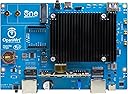
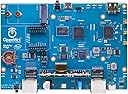
How To Connect: Connect the router to your modem and to your Linux PC. It ought to connect to the internetwork automatically. Set a long root password. Activate Wi-Fi and change the default SSID name (the name of your wi-fi network), which is factory set to "OpenWrt", to whatever name you want ('coz you don't want hackers in the neighbourhood to know you are using OpenWrt) and create long password for it. [If hooking up a switch to the single out-LAN ethernet port, then make sure the switch has an external power-brick, because the switch needs to have an internal CPU, which needs a power source, for the switch to work in knowing how to split the single signal into two or more separate signals [some pattern like that]; you gotta connect the switch and hook it to your devices [eg. digital landline phone]; but then you then got to unplug the switch's power, and then plug it back in for it to work.] IMPORTANT! Inside the router, the firmware factory-release version is a developer's SNAPSHOT version, along with an outdate kernel. It works well, but you MUST flash a Stable release. Snapshots are daily development builds for developers to test the router to see if it turns on (and whatever else they have done with it); these builds receive NO security updates after they are built, lack any support, and prevent you from easily installing extra packages later due to changing kernel versions. You shan't get any automatic updates (Snapshots represent a frozen point in time and do not get patched for newly discovered vulnerabilities). With the factory Snapshot build, you can only install packages (like kernel modules or extra utilities) from the exact same day the snapshot was built; and once a newer snapshot replaces it in the repository, standard installations will fail due to checksum mismatches. Snapshots are automated builds that are untested from the main development branch. You don't want it! You want the STABLE firmware and kernel version (kernel comes with the firmware update). How to Flash (update) a Stable Release: Since your OpenWrt One likely shipped with a snapshot, transitioning to a stable release is the best practice for a set-it-and-forget-it router. Steps: 1) Open Firefox browser and open the LuCI interface. 2) Download the Image: Go to the OpenWrt Firmware Selector on the OpenWrt official world-wide-web-site, search for OpenWrt One from drop-down menu (so you'll get the version made for OpenWrt One router, and download the sysupgrade image. In my case, it looked like this: "openwrt-25.12.5-mediatek-filogic-openwrt_one-squashfs-sysupgrade.itb" 3) In LuCI, goto System --> Backup / Flash Firmware. Scroll down to Flash new firmware image, and choose your downloaded ".itb" image file. 4) You'll get this pop-up message (my screen): Flash image? The flash image was uploaded. Below is the checksum and file size listed, compare them with the original file to ensure data integrity. Click 'Continue' below to start the flash procedure. Size: 10.75 MiB MD5: {they'll show a long string of numbers and letter here} SHA256: {they'll show a crazy-long code of numbers & letters here} 5) In OpenWrt website, navigate to the Official OpenWrt Downloads directory for your router's build (https://downloads.openwrt.org/). You'll get a messsage like this: Welcome to the OpenWrt download area. Follow the links below to find the appropriate directory. Stable Release The current stable OpenWrt 25.12 release is linked below. It is adviced to use the latest available release if possible. OpenWrt 25.12.5 Released: 2026-06-29 6) Click on the latest version. In my case, above, the version was "OpenWrt 25.12.5". The link sends you to a page saying, "Index of (root) / releases / 25.12.5 / targets / ". Scroll down to "mediatek" and click on it ('coz mediatek is what the OpenWrt One router uses). You'll now get the page "Index of (root) / releases / 25.12.5 / targets / mediatek / ". Click on "filogic". You'll now get the page "Index of (root)/releases/25.12.5/targets/mediatek/filogic/". Scroll down to: "openwrt_one-squashfs-sysupgrade.itb" Next to it in the second column you'll see the sha256sum value. It should match the sha256sum in 4) above. If not, then do not install firmware! 7) Uncheck the box that says, "Keep settings and retain the current configuration" to ensure a clean transition, because you don't want to keep the Snapshot firmware configuration. You'll then get a pop up like this: Flashing… The system is flashing now. DO NOT POWER OFF THE DEVICE! Wait a few minutes before you try to reconnect. It might be necessary to renew the address of your computer to reach the device again, depending on your settings. 7) Wait a good fifteen minute just to be sure. The Message shan't go away; it's continuously say, "Flashing..." and it'll have a spinning icon always going because the browser shall not update because the router has been rebooted (make sure there's a green light in front of the router). It has indeed been flash, despite the message never going away. So, just close the browser. Open the browser again and re-log into LuCI. You'll be prompted to with the option for something like to automatically check for updates when signing-in. Agree to it and save it. 8) You'll notice a notice at the top that says to create a root password again (because it's a new firmware and OS kernel has been installed); create root password and log out. You're all set with the latest and greatest Stable firmware and OS kernel that everyone uses! You'll also have to activate wi-fi again, and re-enter your SSID name and wi-fi password again. 9) Subscribe to the OpenWrt mailing list (make sure in gmail, when you open up a new message to write you select "Plain text mode" in "More options", because the OpenWrt mailing list filters out HTML messages (because spam is written in HTML), and you'll be blocked from joining the mailing list. Check your spam box for the confirmation-to-join email and make it not spam. 10) Learn--really learn!--every pattern you can about OpenWrt and the OpenWrt One router, through the OpenWrt forums and YouTube videos. This wonderful learning--real learning!--shall better yourself and enrich your life, clearly! There's so many cool patterns you can do with OpenWrt with the OpenWrt One router! Yes! A whole new world awaits you... !!! NOTE: Has only one (1) output LAN port for ethernet cable and so I could not connect my digital landline phone to it (it was either connect my desktop PC to the router or my digital phone but not both. So, I had to buy an ethernet switch/splitter. This one: "Gigabit Ethernet Splitter 1 to 2, 1000Mbps RJ45 Internet Splitter 2 Port with 3.3FT LAN Cable, Dual Network Adapter for Cat5e/6/7/8, Support 2 Devices Simultaneously". I had to also buy a brick power supply adaptor for the switch, which was this one: "AC to DC 5V 3A USB C/Type-C Power Supply Adapter, 5 Volt 3000mA Power Cord Adapter for Raspberry Pi 4 Model B 1GB/2GB/4GB and More 5V 15W Office or Home Devices,UL Listed FCC". You must use a powered splitter/switch 'coz inside is a processor that needs power to tell how the signals are to be split (in my case, one signal from the internet going out to my desktop PC and the same internet signal going out to my digital landline phone). Sure, I could have used my desktop PC's built-in wi-fi capability to connect to the router, but I prefer ethernet cable hence the switch/splitter set up. To connect ethernet switch to OpenWrt One router LAN port: 1) make sure ethernet switch/splitter power is unpluged & connect ethernet cable OpenWrt One router LAN port then other end to IN ethernet switch/splitter; 2) connect ethernet cable from one of the switch's/splitter's OUT ports to desktop computer ethernet LAN; 3) connect ethernet cable from digital phone (or from analog-to-digital adaptor that's connect to a land-line phone) to switch's/splitter's second OUT port; and 3) plug the switch/splitter power outlet. Computer should now auto connect to internet and digital phone should work, too (sometimes for digital phone to work, unplug modem and adaptor, wait a minute, then plug back in; or, which worked for me, I unplugged the switch's/splitter's power and then plugged it back in and the phone worked).